# Account Setup

# Setting up 2FA (TOTP)

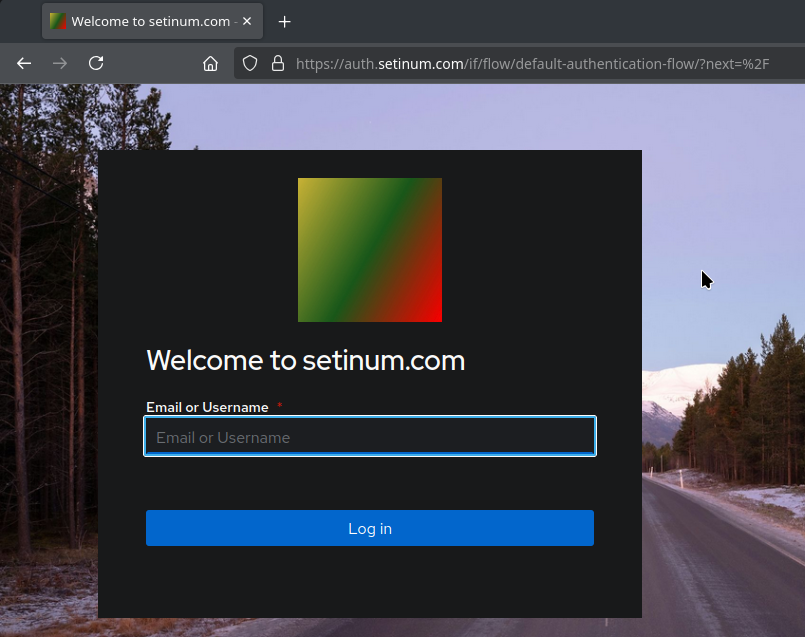
1. <span style="white-space:pre-wrap;">Login via </span>[https://auth.setinum.com](https://auth.setinum.com).  
    [![login-setinum-com.png](https://wiki.setinum.com/uploads/images/gallery/2025-12/scaled-1680-/Y8jSrnDRBoPaNDcB-login-setinum-com.png)](https://wiki.setinum.com/uploads/images/gallery/2025-03/login-setinum-com.png)
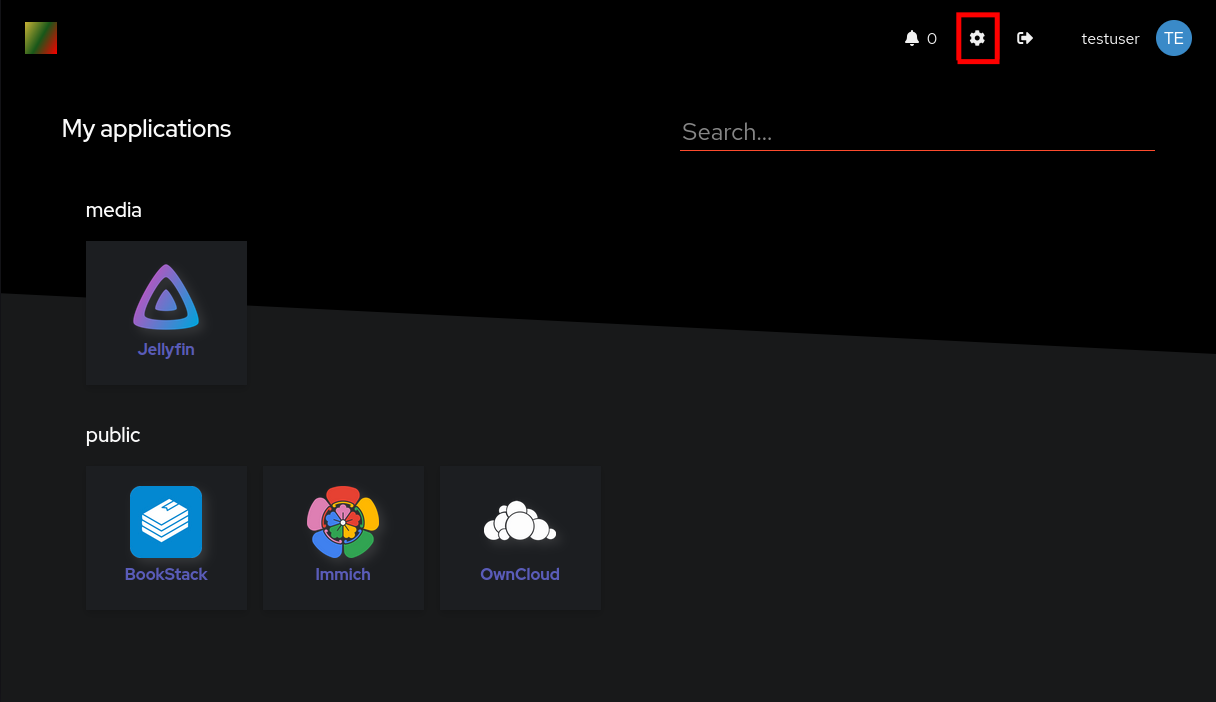
2. <span style="white-space:pre-wrap;">Enter the settings by selecting the gear icon at the </span>**top right.**  
    [![settings-setinum-com.png](https://wiki.setinum.com/uploads/images/gallery/2025-12/scaled-1680-/ieKED6hjSFAQRf60-settings-setinum-com.png)](https://wiki.setinum.com/uploads/images/gallery/2025-03/settings-setinum-com.png)
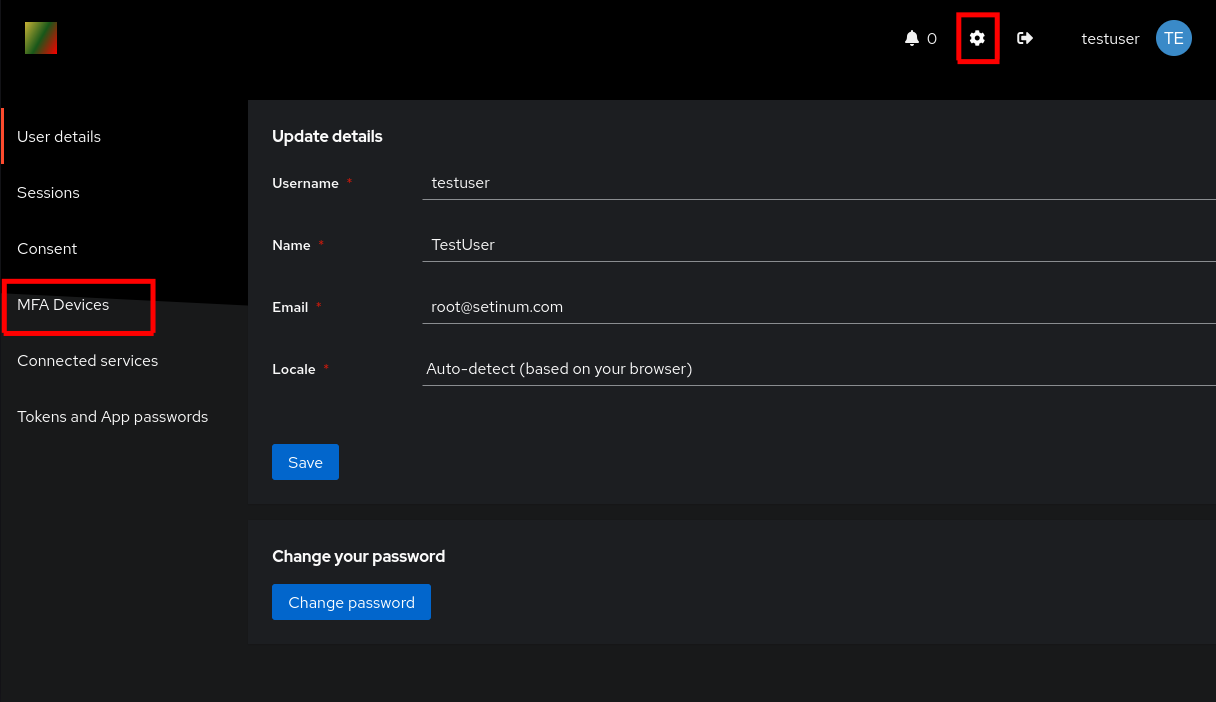
3. <span style="white-space:pre-wrap;">Select </span>**MFA Devices.**   
    [![mfa-setinum-com.png](https://wiki.setinum.com/uploads/images/gallery/2025-12/scaled-1680-/ayGA61FY0wVvuw0c-mfa-setinum-com.png)](https://wiki.setinum.com/uploads/images/gallery/2025-03/mfa-setinum-com.png)
4. <span style="white-space:pre-wrap;">Select </span>**Enroll**<span style="white-space:pre-wrap;"> and </span>**TOTP Device**<span style="white-space:pre-wrap;"> in the drop-down menu.</span>  
    [![enroll-setinum-com.png](https://wiki.setinum.com/uploads/images/gallery/2025-12/scaled-1680-/gC4DoRzqZfAAIsFj-enroll-setinum-com.png)](https://wiki.setinum.com/uploads/images/gallery/2025-03/enroll-setinum-com.png)
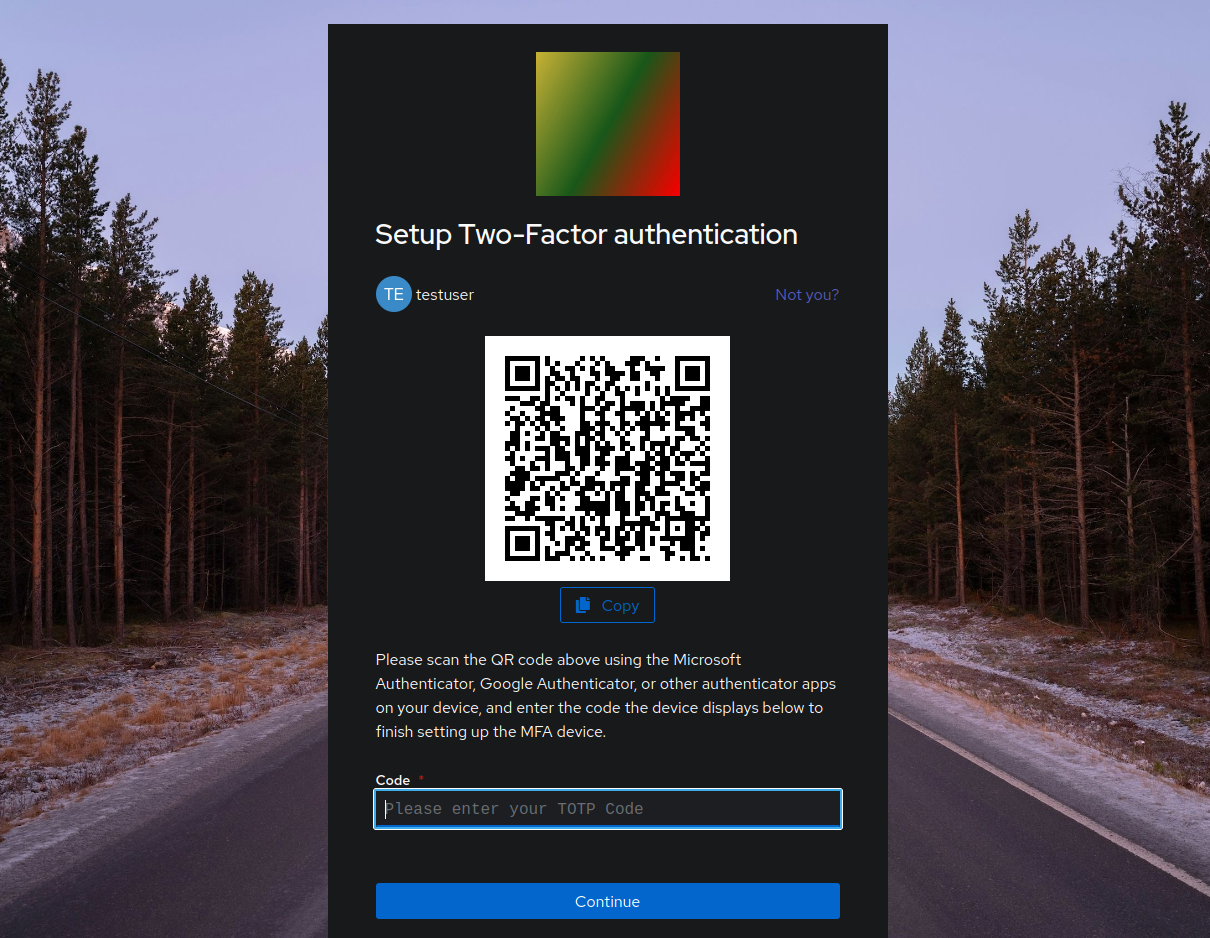
5. Follow the instructions on the webpage by scanning the QR-Code in your TOTP-Client  
    [![qr-totp-setinum-com.png](https://wiki.setinum.com/uploads/images/gallery/2025-12/scaled-1680-/iKjfLotM4oMuAWTd-qr-totp-setinum-com.png)](https://wiki.setinum.com/uploads/images/gallery/2025-03/qr-totp-setinum-com.png)