# Program Paper Size Setup

#### **Overview**

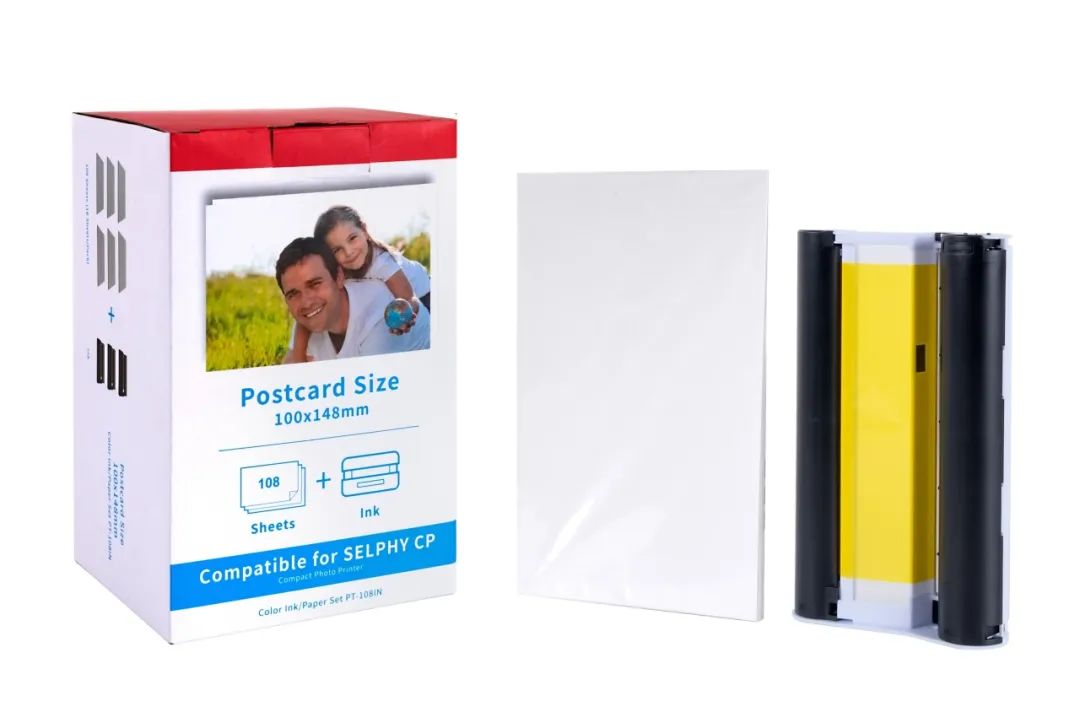
<span style="white-space: pre-wrap;">The Canon Selphy CP1300 uses a </span>**postcard-sized**<span style="white-space: pre-wrap;"> paper format measuring </span>**100 x 148 mm (3.94 x 5.83 inches)**.  
<span style="white-space: pre-wrap;">This size is standard for dye-sublimation printing and </span>**includes a perforated border** that is trimmed after printing.

[![ef7c926d-f343-4148-8194-33162f132582.jpg](https://wiki.setinum.com/uploads/images/gallery/2025-12/scaled-1680-/cmEONJFTc8YEu5m6-ef7c926d-f343-4148-8194-33162f132582.jpg)](https://wiki.setinum.com/uploads/images/gallery/2025-02/ef7c926d-f343-4148-8194-33162f132582.jpg)
#### **Setting Up Adobe Illustrator**

1. **Create a New Document:**
    - <span style="white-space: pre-wrap;">Open Illustrator and go to </span>**File &gt; New**.  
        <span style="white-space: pre-wrap;"> Set the following options:</span>  
        ```
        Width 100mm
        Height 148mm
        Color Mode RGB
        Raster Effects High (300ppi)
        ```
2. **Set Bleed &amp; Margins (Optional):**
    - <span style="white-space: pre-wrap;">Since the Selphy trims the edges, consider adding </span>**1 mm bleed**<span style="white-space: pre-wrap;"> on all sides (</span>**102 x 150 mm total**).
    - Define margins for safe zone content (**5 mm inside the edges**).
3. **Export Settings:**
    - <span style="white-space: pre-wrap;">Go to </span>**File &gt; Export &gt; Export As**<span style="white-space: pre-wrap;"> and select </span>**JPEG or PNG**.
    - <span style="white-space: pre-wrap;">Set resolution to </span>**300 ppi**<span style="white-space: pre-wrap;"> and ensure the </span>**Color Profile is sRGB**.
    - <span style="white-space: pre-wrap;">Click </span>**Export**.

#### **Setting Up Inkscape**

1. **Create a New Document:**
    - <span style="white-space: pre-wrap;">Open Inkscape and go to </span>**File &gt; Document Properties**.
    - <span style="white-space: pre-wrap;">Under the </span>**Custom Size**<span style="white-space: pre-wrap;"> section, set </span>**Width**<span style="white-space: pre-wrap;"> to </span>**100 mm**<span style="white-space: pre-wrap;"> and </span>**Height**<span style="white-space: pre-wrap;"> to </span>**148 mm**.
    - <span style="white-space: pre-wrap;">Change </span>**Units**<span style="white-space: pre-wrap;"> to </span>**mm**.
    - Close the properties window.
2. **Enable Bleed &amp; Guides:**
    - <span style="white-space: pre-wrap;">Add </span>**1 mm bleed**<span style="white-space: pre-wrap;"> by setting the document to </span>**102 x 150 mm**<span style="white-space: pre-wrap;"> if needed.</span>
    - <span style="white-space: pre-wrap;">Go to </span>**View &gt; Guides**<span style="white-space: pre-wrap;"> and drag safe-zone guides (</span>**5 mm inside edges**).
3. **Export Settings:**
    - <span style="white-space: pre-wrap;">Go to </span>**File &gt; Export PNG Image**.
    - <span style="white-space: pre-wrap;">Set </span>**DPI to 300**<span style="white-space: pre-wrap;"> for high-quality output.</span>
    - <span style="white-space: pre-wrap;">Use </span>**sRGB color profile**<span style="white-space: pre-wrap;"> for accurate colors.</span>